Overview
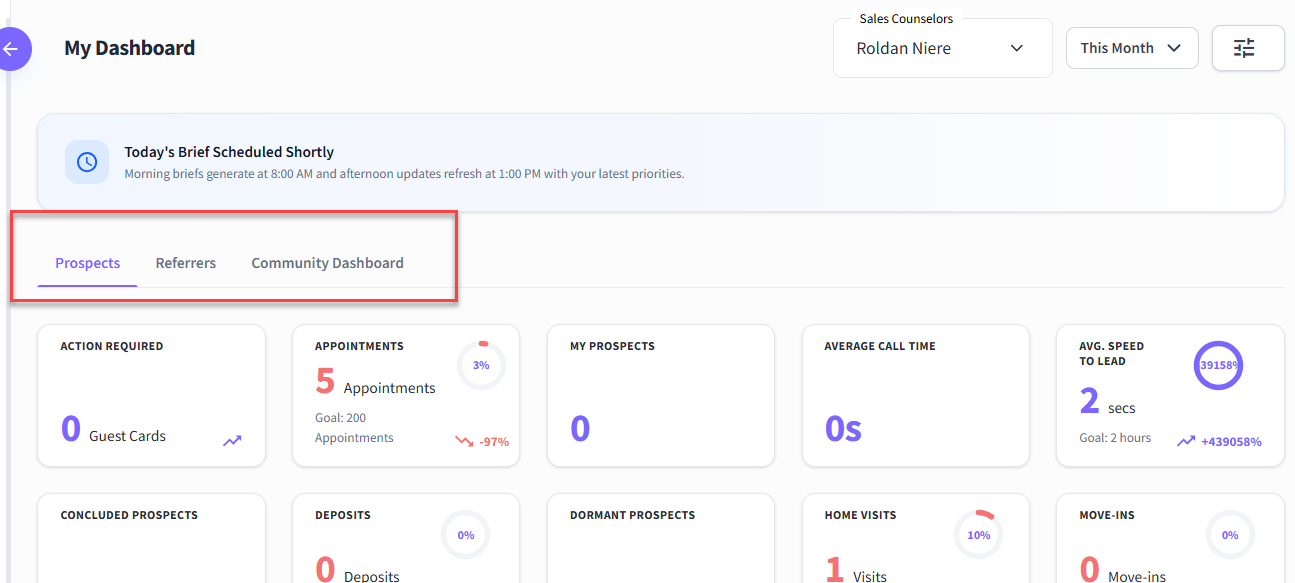
The Dashboards in Journey CRM serve as your centralized command center for monitoring lead volume, pipeline velocity, team follow-up activity, and conversion performance in real time. Designed for executive reporting, community operations, and sales counselor task management, the CRM features three specialized dashboard views:
Prospects Dashboard – Tracks individual prospect movement, sales counselor activities, communication touchpoints, and funnel conversion rates.
Referrers Dashboard – Monitors referral partner relationships, organization ratings, outreach activities, and professional lead outcomes.
Community Dashboard – Provides portfolio-level and community-level visibility into market trends, occupancy progress, and property performance comparisons.
Things to Know Before You Begin
Role-Based Visibility: Available dashboard tabs, KPI metrics, and layout options depend on your assigned system role and community security permissions.
Real-Time Data Refresh: Metrics reflect dynamic CRM entries across Guest Cards, Appointments, Tasks, and Communication logs.
Data Integrity: Accurate dashboard totals rely on consistent data entry across your team. If a value appears unexpected, verify your top filters or check underlying prospect/referrer records.
Safe Customization: Customizing your dashboard (showing/hiding widgets or reordering cards) alters only your personal visual layout—it never modifies or deletes underlying CRM records.
How to Customize the Dashboard
The Dashboard can be customized to display the information most relevant to your workflow. You can show or hide dashboard widgets, rearrange their order, and personalize your view for quick access to important metrics, tasks, and activities.
Things to Know
Customizing the dashboard changes only how the information is displayed; it does not modify the underlying data.
You can rearrange widgets at any time to match your workflow.
If available, you can restore the default dashboard layout from the customization menu.
Some customization options may vary based on your user role and permissions.
Navigation Path to Customize the Dashboard
Dashboard> Customize Dashboard
How to Customize the Dashboard
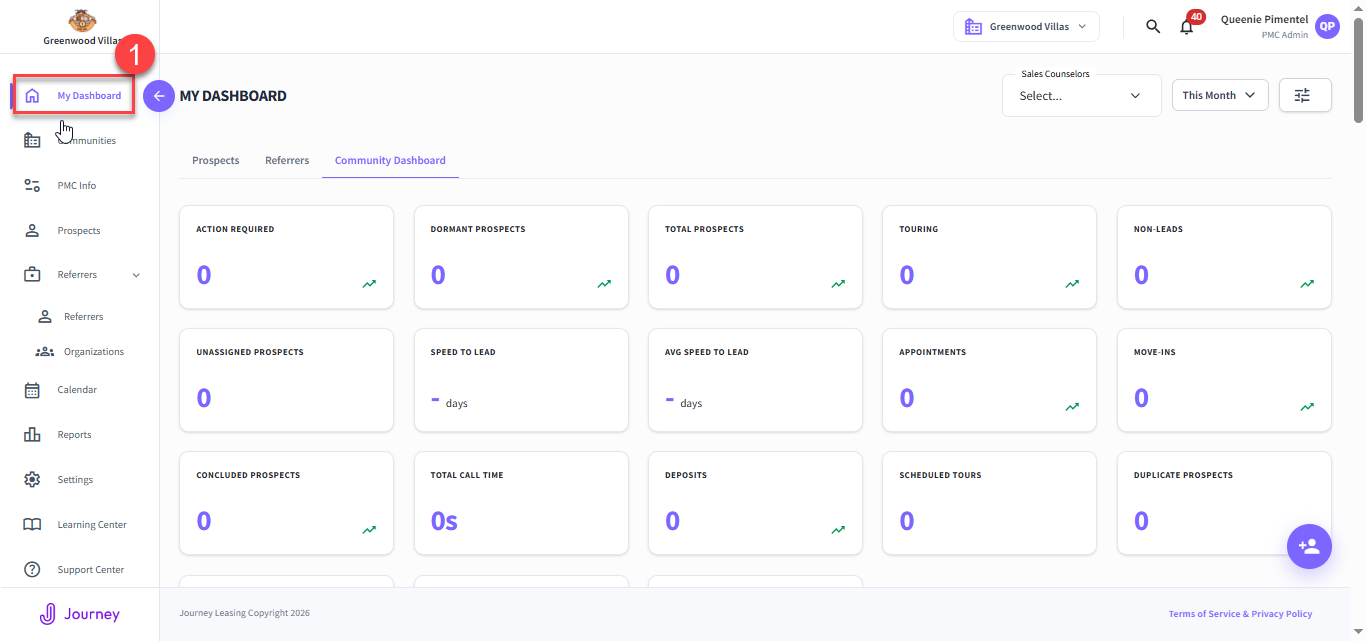
1. Navigate to My Dashboard to view the Dashboard Table.
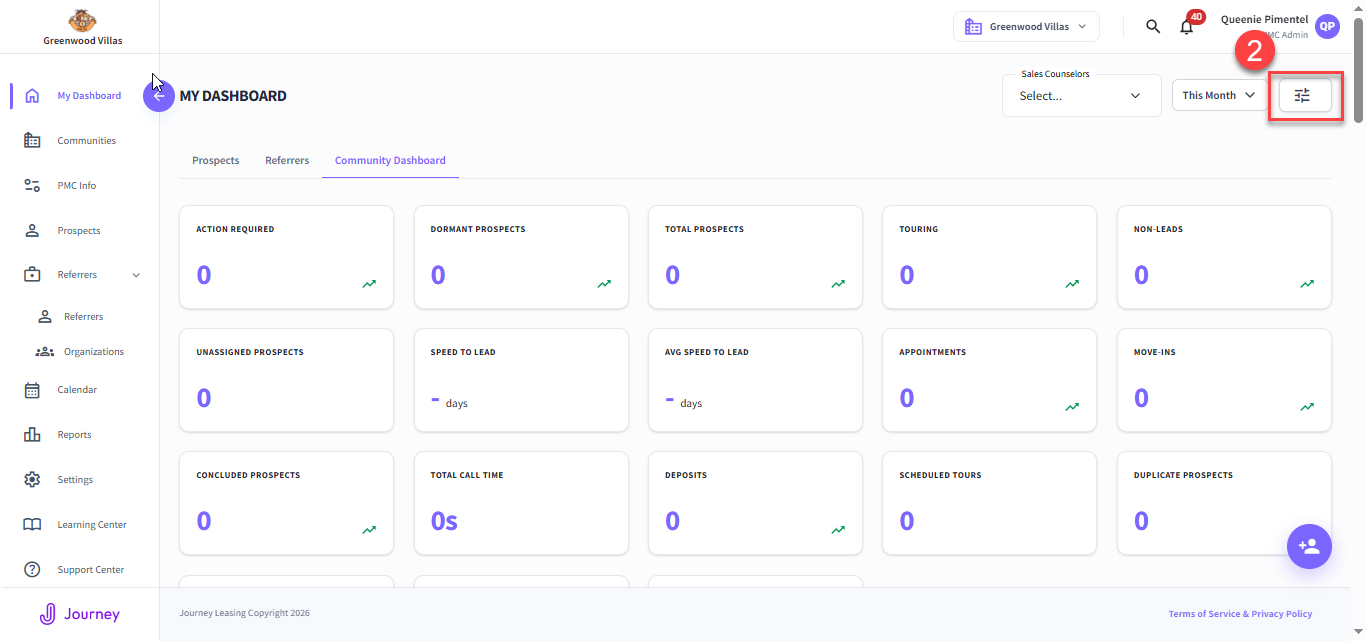
2. Click the Column Display option in the toolbar. Check the columns you want to see and uncheck the ones you want to hide.
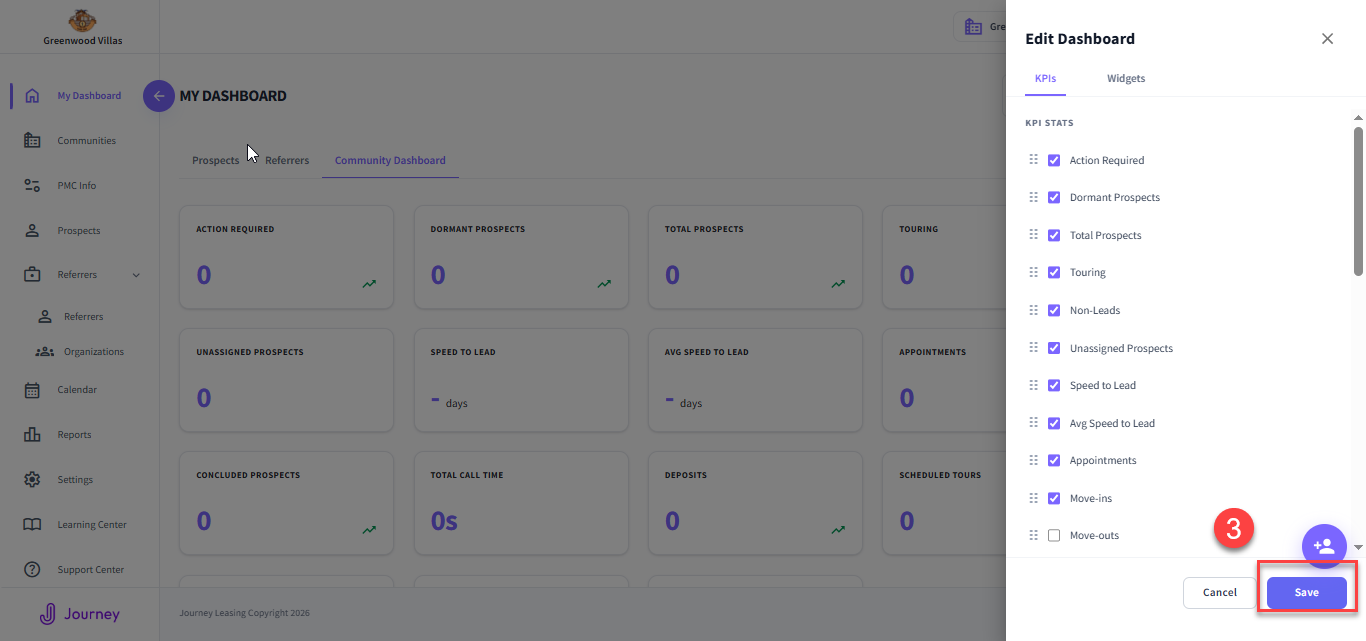
3. Drag and drop the column headers to rearrange them in your preferred order, then click Save.
How to Customize your Dashboard
Was this article helpful?
That’s Great!
Thank you for your feedback
Sorry! We couldn't be helpful
Thank you for your feedback
Feedback sent
We appreciate your effort and will try to fix the article