Overview
The Prospects Dashboard in Journey CRM serves as your central command center for reviewing prospect volume, sales team responsiveness, pipeline velocity, and conversion performance in real time. Designed for both daily operational sales execution and executive review, this dashboard gives sales counselors and leasing directors instant visibility into incoming lead response times, unassigned inquiries, scheduled appointments, and stage-to-stage funnel progression.
Things to Know
- Dynamic Refresh & Rules: Dashboard data updates dynamically based on your organization’s reporting rules and activity entries (e.g., created date, activity date, or status change date).
- Role-Based Access: Visible fields, KPI cards, and community scopes vary depending on your assigned user role and property security permissions.
- Data Integrity: Accurate dashboard totals rely on consistent data entry across Guest Cards, Call Logs, Tasks, and Appointments. If a value appears unexpected, verify your top filters or review the underlying prospect records.
- Layout Customization: Customizing the Prospects Dashboard layout (showing/hiding KPI cards or reordering widget panels) alters only your personal visual view—it never modifies or deletes underlying CRM records.
Finding the Prospects Dashboard
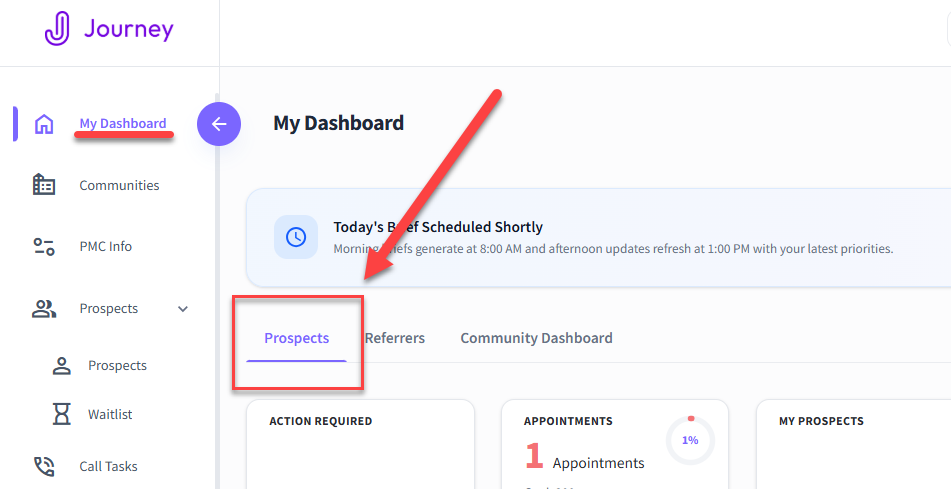
To access the Prospects Dashboard in Journey, go to:
- My Dashboard > Prospects
Filtering the Prospects Dashboard
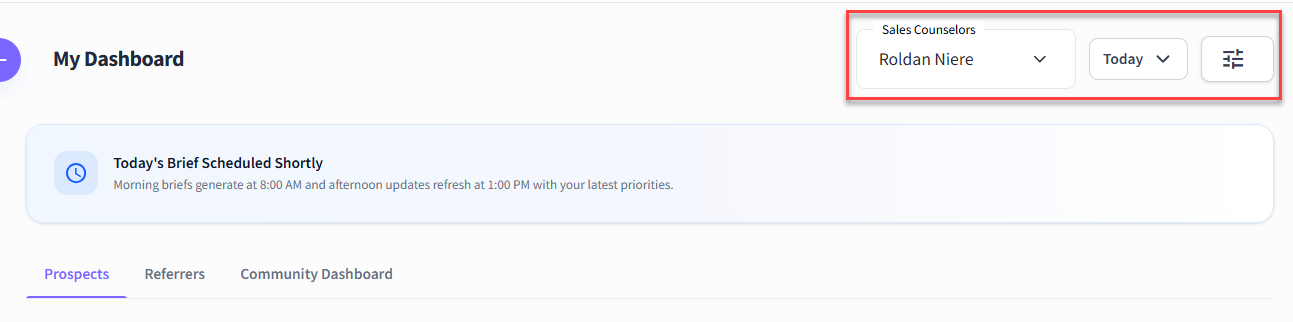
Use filters to narrow the dashboard results. The filters you select determine which prospect records are included in the dashboard.
| Sales Counselors | Shows the data based on the selected Sales Counselor |
| Date | Limits dashboard data to records or activity within the selected dates. |
| Edit Dashboard | Allows you to Edit KPIs from the Prospects Dashboard and the Widgets layout. |
After selecting filters, review the dashboard to confirm the displayed data matches your intended report view.
Widgets
The Prospects Dashboard consists of different Widgets, namely the Activity Metrics, Conversion Metrics, My Appointments, My Prospects Table, My Tasks, New Inquiries and Outreach
Activity Metrics
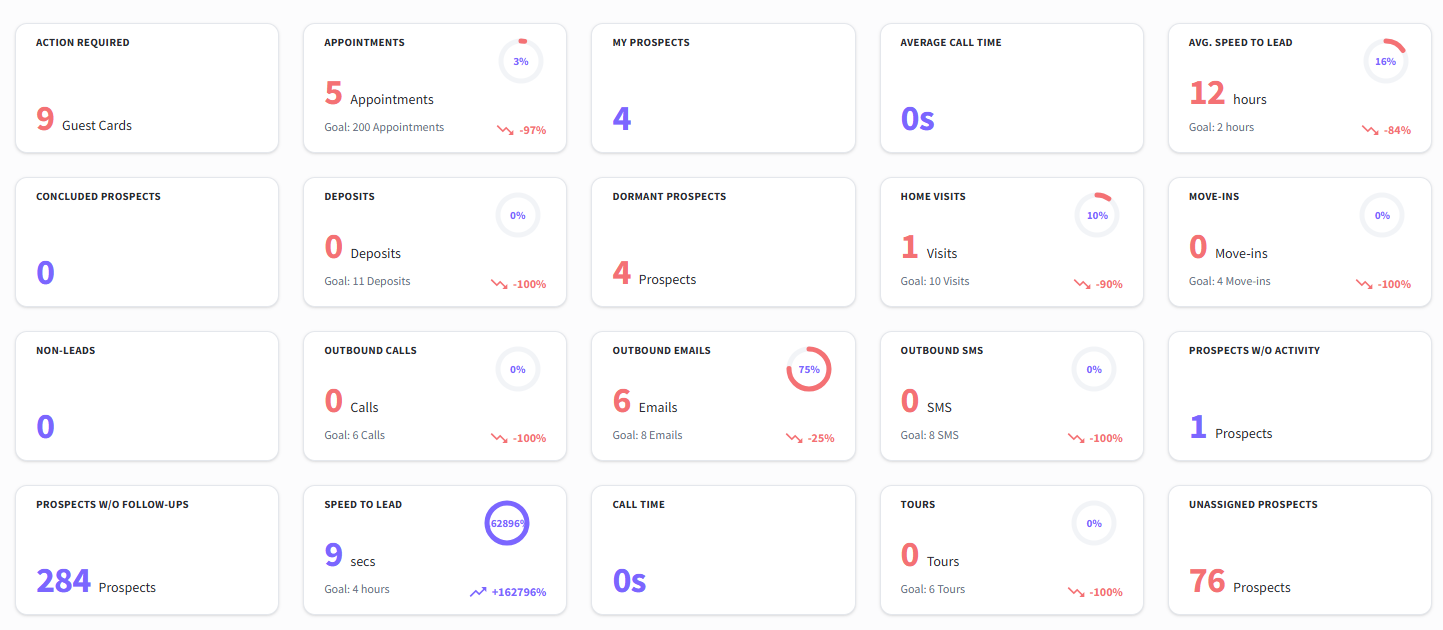
The Activity Metrics widget (located at the top of the Prospects Dashboard) provides real-time, high-level operational KPI cards that track prospect volume, agent productivity, responsiveness, and critical action alerts.
Key Field Indicators
The Activity Metrics widget provides real-time, high-level operational KPI cards that track prospect volume, agent productivity, responsiveness, and critical action alerts.
| Action Required | This is for prospects or guest cards that an action has been performed on but the agent has not followed up with the prospect for a certain amount of time. This timeframe is set by the property administrator in the settings and configurations section of the application |
| Appointments | Total number of appointments that the agent has scheduled for the month |
| Average Call Time | Average time spent on the phone by an agent in a given time frame |
| Average Speed to Lead | This is the property's average time of how soon a prospect was contacted from when they got into the CRM |
| Concluded Prospects | This is the total number of prospects/guest cards that were concluded in a given month by an agent for any reason. A good example would be a qualified prospect that was concluded because they either decided not to leave their home or they moved into a competitor's property |
| Deposits | Number of Prospects who have toured a unit and have paid a deposit to reserve the unit/apartment who paid a deposit on a unit |
| Dormant Prospects | These are prospects that haven't had any activity for a given amount of time |
| Home Visits | Visits scheduled by sales counsellors to visit a prospect at their home |
| Move-Ins | Total number of prospects that have moved into a unit for a particular agent |
| Non-Leads | Number of leads that have been assigned to an agent that end up not being prospects. These are some people who are looking for jobs or sales people who called the community |
| Outbound Calls | Calls placed by sales counsellors to prospects |
| Outbound Emails | Emails sent by sales counsellors to prospects |
| Outbound SMS | SMS sent by a sales counsellor to a prospect |
| Prospects without Activity | Prospects that haven't had any activity for x number of days |
| Prospects without Follow-ups | Prospects with no follow-up activity like an appointment, a scheduled tour or a visit |
| Speed to Lead | This KPI describes how fast an agent contact a prospect from when the prospect gets into the CRM |
| Call Time | time spent on the phone by an agent in a given time frame |
| Tours | Number of scheduled Tours that ended in a completed tour |
| Unassigned Prospects | number of unassigned prospects |
Conversion Metrics
The Conversion Metrics widget displays bolded pipeline tabs and percentage gauges that track funnel velocity and stage-to-stage progression across the entire sales journey.
Key Field Indicators
The Prospects Dashboard will different cards with different Activity KPI Stats (first) that provide a quick view of prospect volume, activity, and conversion progress with optional Activity Metrics. The Conversion KPIs will follow with a bolding around each tab and will show conversion metrics.
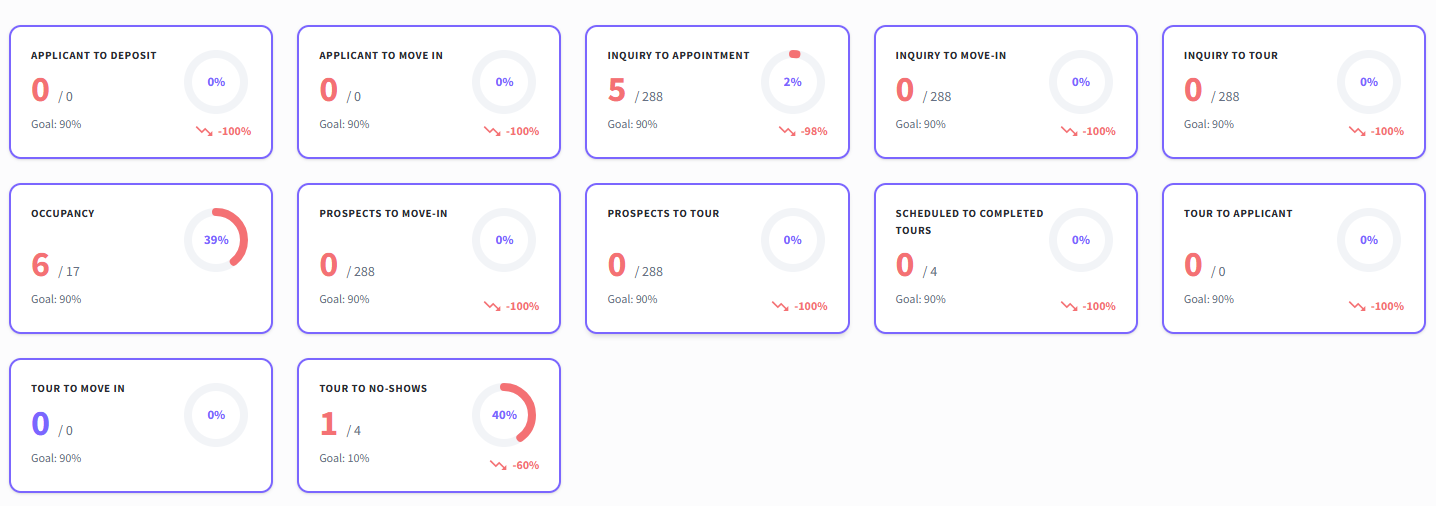
Applicant to Deposit | Percentage of prospects who moved from the applicant stage to the deposit stage |
| Applicant to Move-In | Percentage of prospects who moved from the touring stage to the move-in stage |
| Inquiry to Appointment | Total count of scheduled tours by an agent |
| Inquiry to Move-in | Total count of move-in by an agent |
| Inquiry to Tour |
|
| Prospects to Move-In | Percentage of prospects who moved from the touring stage to the move-in stage |
| Prospects to Tour | The number of prospects that had an appointment scheduled with them by an agent |
| Scheduled to Completed Tours | Number of scheduled Tours that ended in a completed tour |
| Tour to Applicant | Percentage of prospects who moved from the touring stage to the applicant/applying stage |
| Tour to Move-In | Total number of prospects who toured or visited a unit who ended up moving into the unit |
| Tour to No-Shows | Number of scheduled appointments that ended in a No Show |
KPI Dashboard Section & Goal Tracking Rules
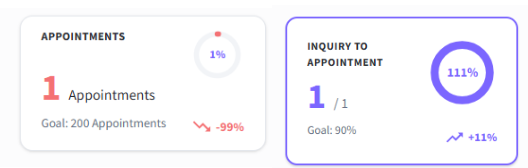
Goal Completion Circle: Each KPI card displays the current count vs. target goal, alongside a circular progress gauge on the right showing percentage of completion.
Trending Up (Goal Surpassed): If an agent exceeds their target goal (e.g., goal is 50, current count is 51), the percentage circle fills to 100%, and a green upward-trending arrow displays with text showing the percentage surpassed (e.g.,
▲ +10%).Trending Down (Goal At-Risk): If it is past mid-month and the agent has reached less than 50% of their target goal, a red downward-trending arrow displays to signal that the agent is at risk of missing their goal.
Target Missed Indicator: If an Action Required threshold or goal is not met, the numerical value renders in red font.
New Inquiries
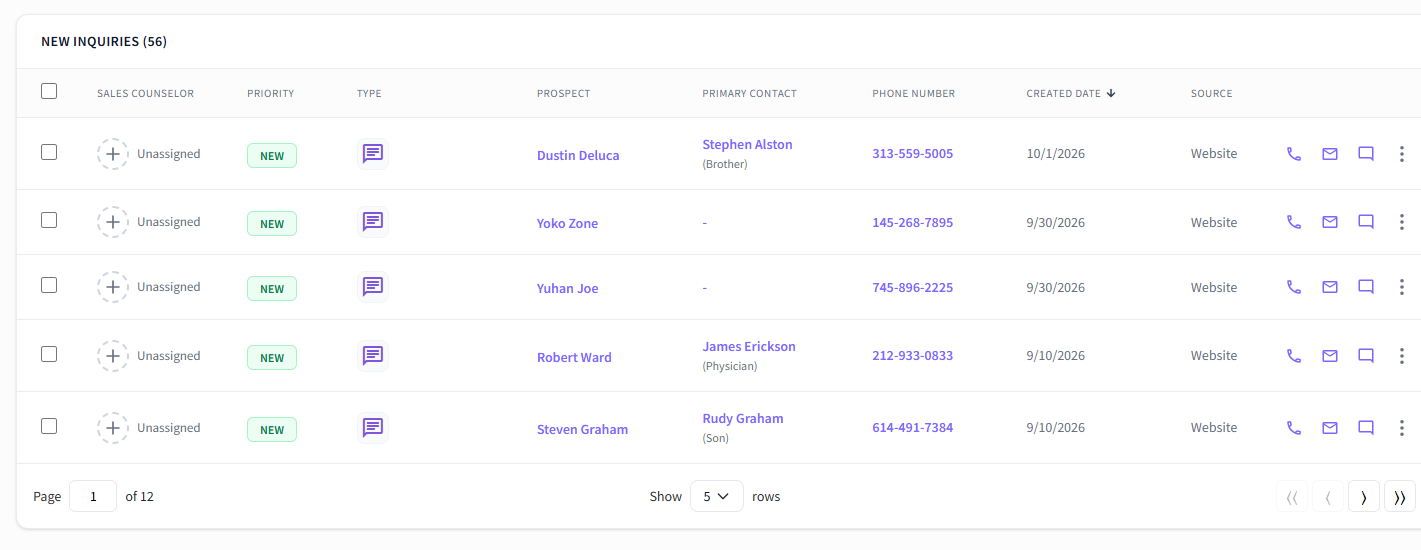
A real-time intake table showing newly created inquiries that have recently entered the CRM via API integrations, web forms, website chat widgets, or 3rd-party lead vendors. From here you can quickly check for the details of each prospect, assign Sales Counselors, communicate with each prospect and provide status updates.
Assign Sales Counselors to New Leads/Inquiries
1. Click the (+) sign located under the Sales Counselor column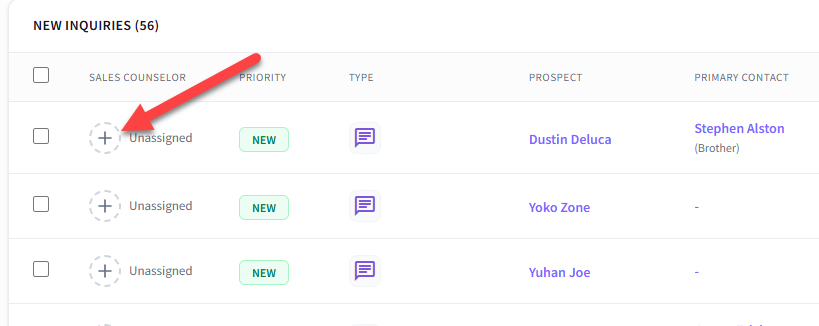
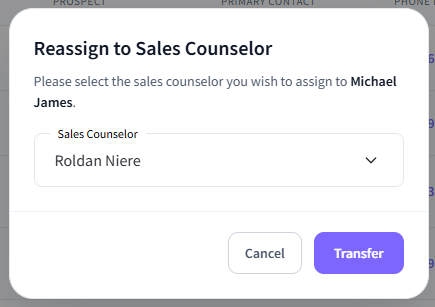
2. A quick pop-up will appear where you can assign the Sales Counselor to the chosen Prospect.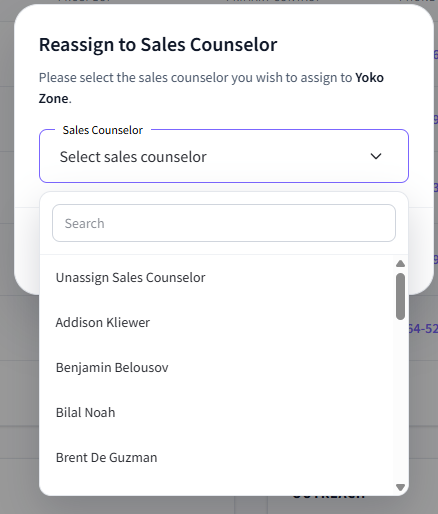
3. Click Transfer. As soon as the transfer is done, that prospect/new inquiry will be assigned to the selected Sales Counselor and will now disappear from the list
Prospect Communication
The New Inquiries widget allows you to immediately engage newly created leads without leaving the dashboard or navigating away from their current view. Located on the right side of every prospect row, the quick action icons enable 1-click communication via Call, Email, and 2-way SMS.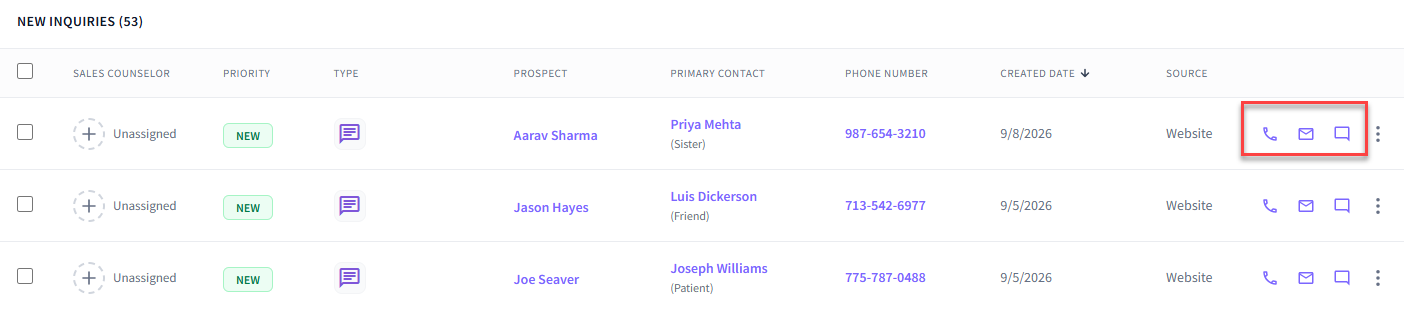
Quick Action
The New Inquiries widget also allows quick actions to be taken within the prospect itself. You can Log Action, Conclude a Prospect, Mark as Non Lead, Assign to Sales Counselor, Add/Create an Appointment or Task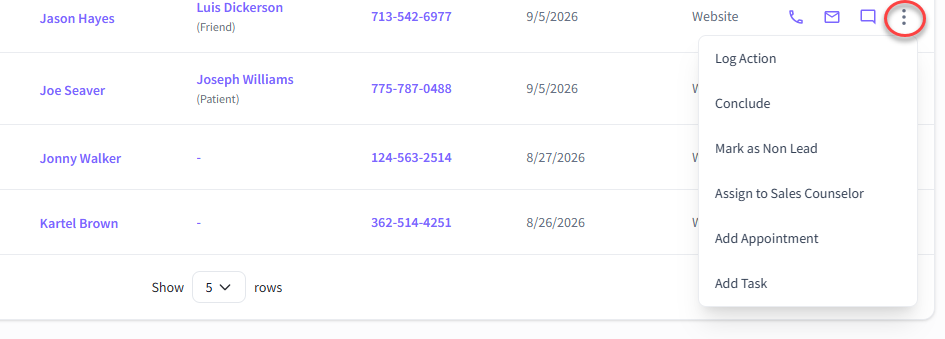
My Appointments
Displays scheduled visits, tours, and discovery meetings across counselors.
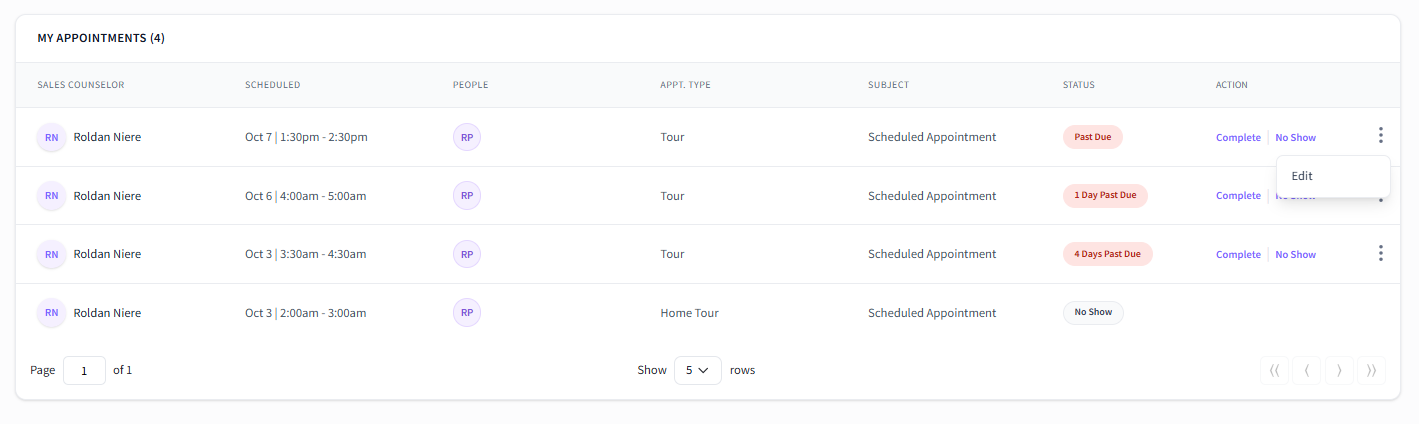
Sales Counselor | Displays the name or initials of the assigned team member conducting or hosting the scheduled appointment. |
| Scheduled | Indicates the specific date and time timestamp for when the appointment is set to take place |
People | hows the prospect and primary contact names associated with the meeting. Displays initials with full name hover tooltips, hyperlinked directly to the prospect's Guest Card. |
Appt. Type | Identifies the visit format or meeting type (e.g., on-site tour, virtual tour, off-site visit, home visit), rendered in lowercase text. |
Subject | Brief title or topic describing the specific purpose of the scheduled appointment. |
Status | Displays the current operational state of the appointment (e.g., Due in X days, Completed, Cancelled, Past Due). If an appointment is past due, only the Past Due status label renders in red text. |
My Tasks
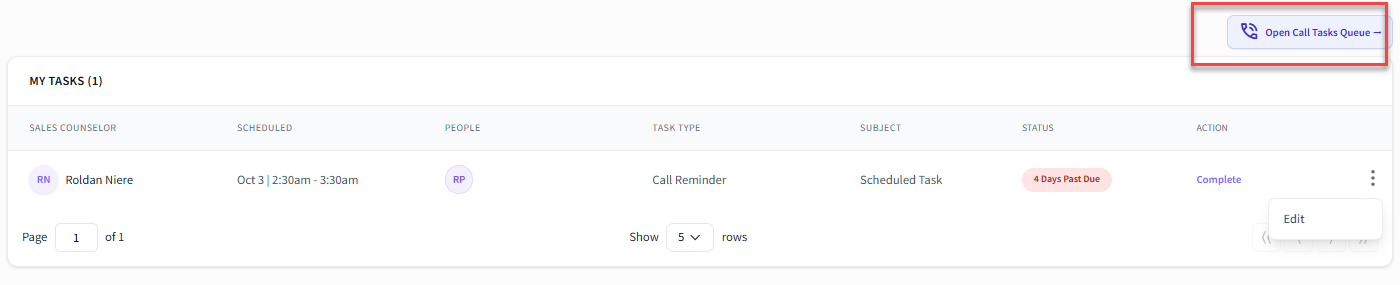
| Sales Counselor | Displays the name or initials of the team member assigned to complete the follow-up task. |
| Scheduled | Indicates the target date and time window when the task is due. |
| People | Displays the prospect and primary contact names associated with the task. Names render showing clean initials with full-name hover tooltips and are hyperlinked directly to the prospect's Guest Card. |
| Task Type | Identifies the specific action category required (e.g., call reminder, send email, sms follow-up, note), |
| Subject | Brief description or title outlining the topic or objective of the follow-up task. |
| Status | Displays the current state of the task (e.g., Due in X days, Past Due). If a task is past due, ONLY the Past Due status label renders in red text while surrounding row details remain in standard font. |
| Action | Provides direct execution links (such as Mark Complete or options menu) allowing counselors to clear or update the task status directly from the dashboard row without opening the full record |
Open Call Tasks Queue Button
Located in the upper header/toolbar of the My Tasks widget, the Open Call Tasks Queue button acts as a high-velocity phone outreach launcher.
Clicking this button opens a dedicated power-dialing queue containing all scheduled and past-due phone call tasks assigned to the agent. It allows counselors to systematically place calls one after another, automatically triggering call logs, updating response timers, and advancing prospect statuses without having to manually open each task individually.
My Prospects Table
The My Prospects widget on the Prospects Dashboard serves as an active lead roster, providing sales counselors with a list view of all assigned prospects for quick profile access, priority review, and direct multi-channel outreach
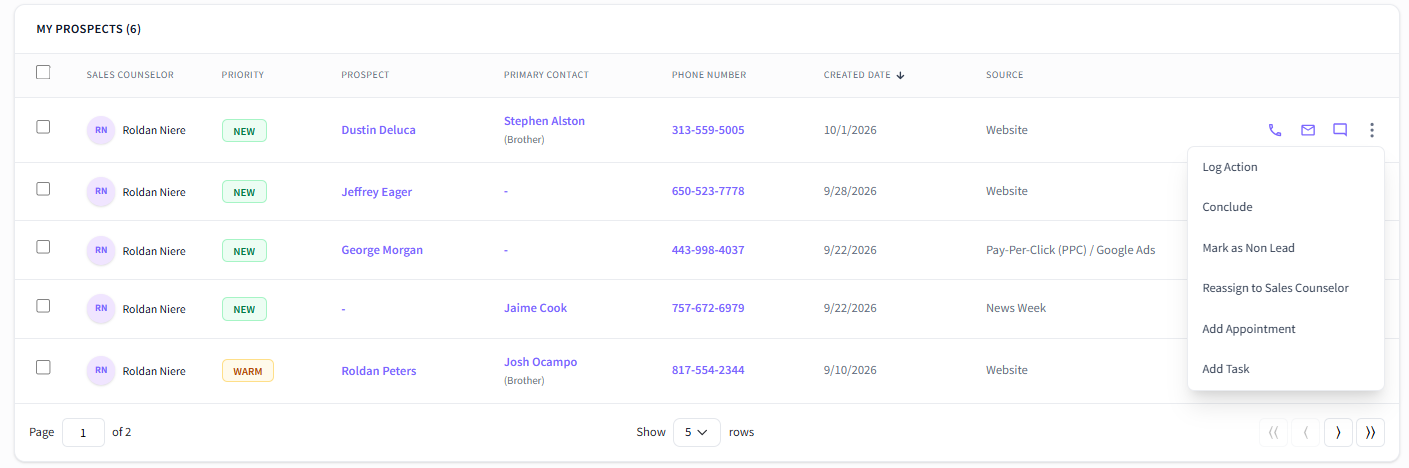
| Sales Counselor | Displays the assigned counselor's initials and full name |
| Priority: | Highlights the lead's urgency level tag (e.g., NEW, WARM, HOT, COLD) to guide counselor follow-up order. |
| Prospect | Displays the primary prospect's name, hyperlinked directly to their Guest Card. |
| Primary Contact | Displays the designated decision-maker or family contact name along with their relationship |
| Phone Number | The primary contact phone number for outreach. |
| Source | Identifies the lead attribution channel |
Actions & Functions
| Log Action | Opens the activity logger to manually record off-system interactions (e.g., Outbound Call, Home Visit, Tour, Mailed Collateral, Deposit). |
| Conclude | Closes the active prospect record when an individual is no longer pursuing residency (prompts a reason for loss |
| Mark as Non-Lead | Reclassifies submissions that are not genuine prospects (e.g., vendors, job applicants, spam) to keep pipeline metrics clean. |
| Reassign to Sales Counselor | Reassigns ownership of the prospect record to another sales counselor on the team |
| Add Appointment | Opens the appointment booking modal to schedule an on-site tour, virtual visit, or meeting. |
| Add Task | Creates a follow-up action item assigned to a counselor with a scheduled due date. |
Outreach
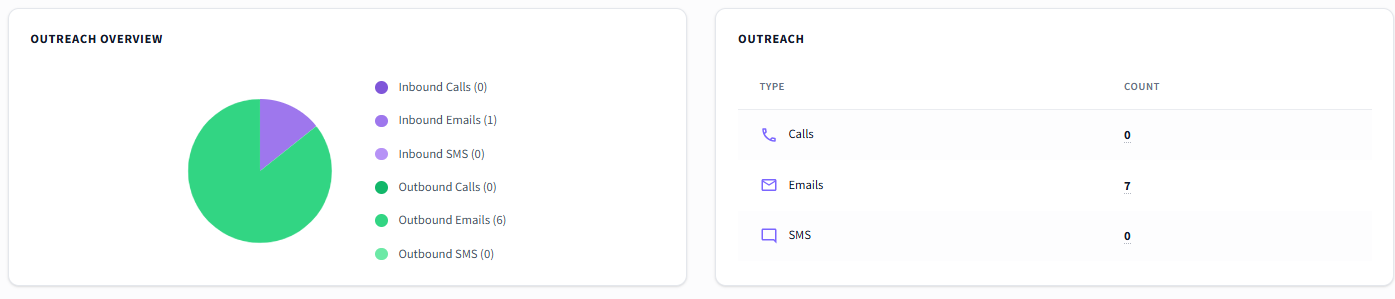
The Outreach Overview widget on the Prospects Dashboard is a real-time communication tracking card designed to give sales counselor teams and leadership instant visibility into total outreach activity across key channels (Calls, Emails, and SMS).
It is composed of two side-by-side analytical views:
Was this article helpful?
That’s Great!
Thank you for your feedback
Sorry! We couldn't be helpful
Thank you for your feedback
Feedback sent
We appreciate your effort and will try to fix the article