Overview
The Referrers Dashboard in Journey CRM serves as a dedicated strategic command center for managing and evaluating professional referral partner relationships. It provides community teams, sales counselors, and executive leadership with real-time analytics into professional lead generation, referrer organization performance, lead quality ratings, and conversion outcomes.
Things to Know
Unified Referral Tracking: Every referral partner—whether a hospital discharge planner, healthcare provider, social worker, case manager, or placement agency—is mapped directly to an organization and individual referrer record.
Real-Time Dynamic Data: All metrics across KPI cards and widgets reflect live updates from referrer communications, scheduled meetings, logged touchpoints, and prospect stage transitions.
Role-Based Visibility: Available dashboard metrics, property contexts, and layout configurations are determined by your assigned user role and community security scope.
Layout Personalization: Customizing widget arrangements or column visibility alters only your personal user view and never modifies underlying CRM database records.
Finding the Referrers Dashboard
Log in to Journey.
From the main navigation menu, select My Dashboard.
Select the dashboard menu or dashboard selector.
Select Referrers Dashboard.
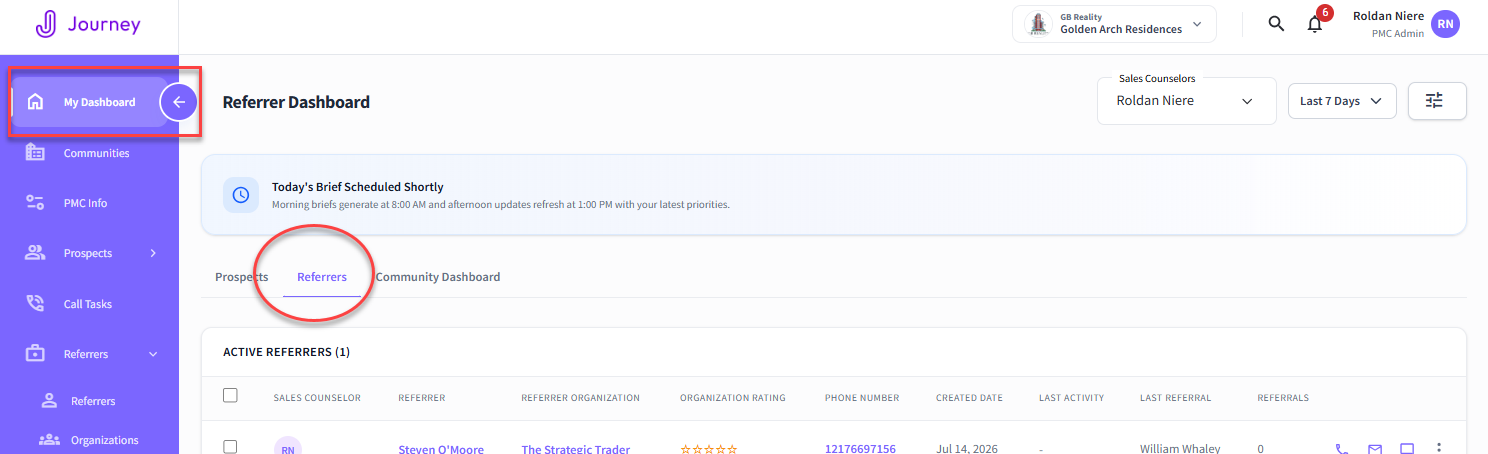
Filtering the Prospects Dashboard
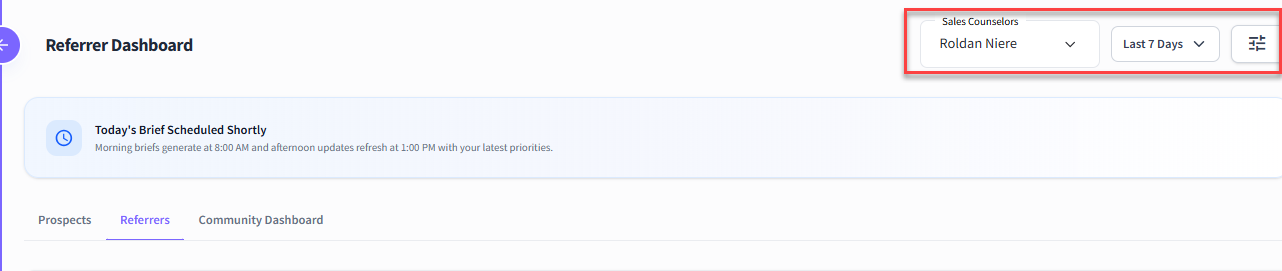
Use filters to narrow the dashboard results. The filters you select determine which prospect records are included in the dashboard.
| Sales Counselors | Shows the data based on the selected Sales Counselor |
| Date | Limits dashboard data to records or activity within the selected dates. |
| Edit Dashboard | Allows you to Edit KPIs from the Prospects Dashboard and the Widgets layout. |
After selecting filters, review the dashboard to confirm the displayed data matches your intended report view.
Widgets
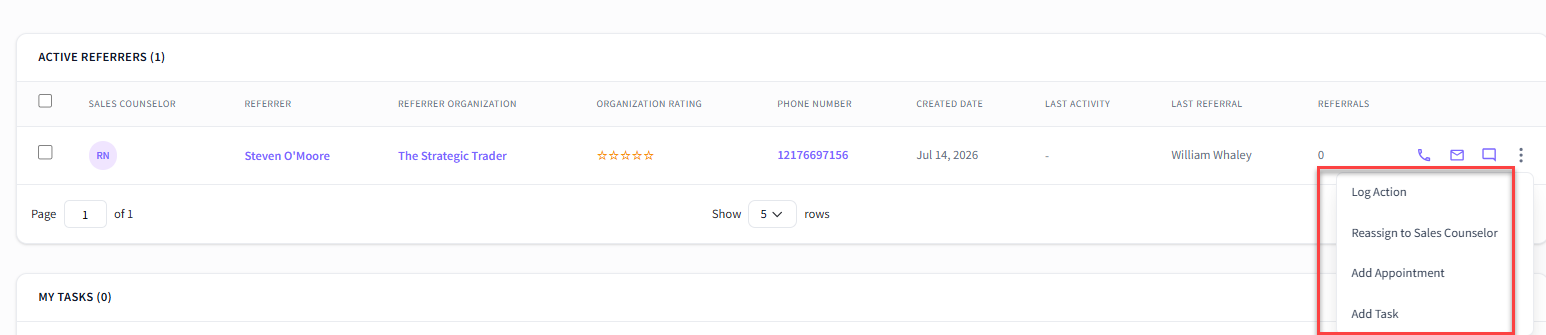
Active Referrers
The Active Referrers Table serves as the central directory for all professional partner relationships linked to your community or portfolio. It allows sales counselors and outreach directors to monitor active referrers, view contact information, evaluate performance ratings, and trigger direct engagement actions without leaving the dashboard.
Things to Know
Individual vs. Organization Mapping: Each row represents an individual professional contact linked to a parent organization (e.g., a specific discharge planner assigned to a regional hospital).
Real-Time Touchpoints: Engagement statuses update automatically whenever emails, phone calls, or appointments are logged against the referrer's profile.
Activity Metrics
The Activity Metrics widget provides visual quantitative tracking of all professional outreach efforts conducted by your sales team. It measures team productivity and engagement volume dedicated to building and nurturing professional referrer networks.
Things to Know
- Activities are attributed to the assigned sales counselor who executed the touchpoint.
- Inactivity SLA Tracking: Regular outreach logged here resets referrer inactivity timers, ensuring high-value referral sources receive continuous engagement
Key Field Indicators
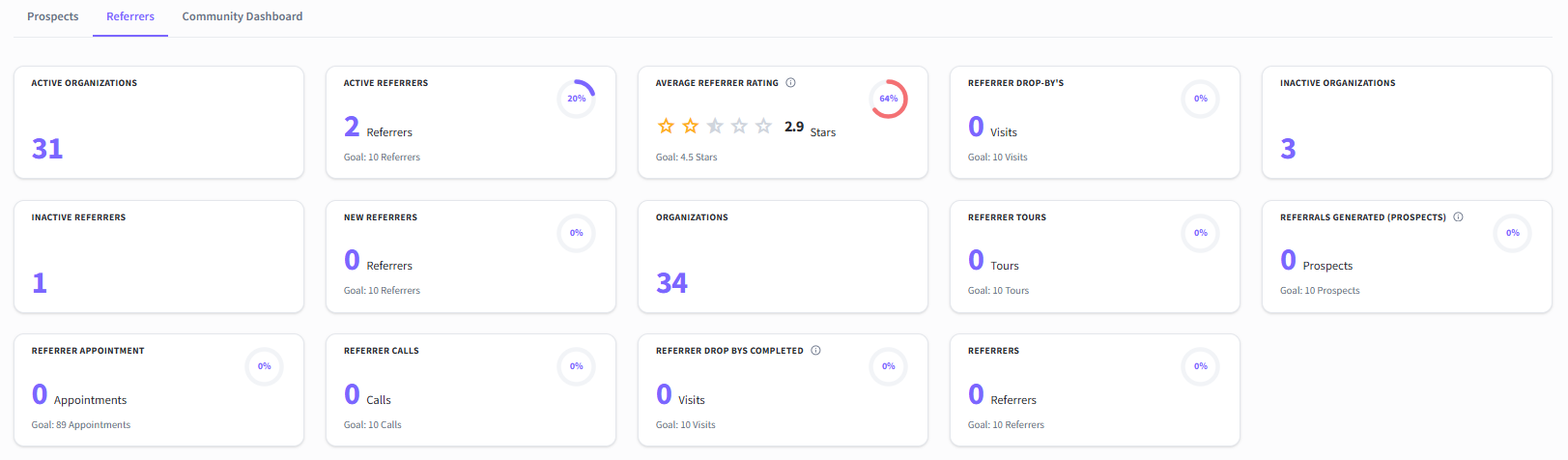
The Activity Metrics widget provides real-time, high-level operational KPI cards that track referral activities such as the number of active organizations, referrers and a count of any or new active referrers.
| Active Organizations | The total count of professional partner entities (e.g., hospitals, rehabilitation centers, law firms, home health agencies) that have sent a referral or logged outreach activity within the designated active window. |
| Active Referrers | The total count of individual professional contacts (e.g., specific discharge planners, social workers, physicians) who have actively submitted leads or engaged in outreach within the selected timeframe. |
| Inactive Organizations | Referral agencies or corporate entities that have registered zero lead generation or outreach activity over a specified threshold (e.g., 30+ days). |
| Inactive Referrers | Individual professional contacts who have not submitted a lead or participated in outreach touchpoints within the inactivity threshold. |
| New Referrers | The number of newly identified or created individual professional contacts added to the CRM roster within the selected date range |
| Organizations | The aggregate count of all professional entity records created and stored in the system registry, regardless of active status |
| Referrers | The aggregate count of all individual professional contact records registered in the system. |
| Average Referrer Rating | The overall mean score or tier rating (e.g., Tier 1 / High Yield, Tier 2, Tier 3) assigned across all active referrers, helping prioritize high-converting referral relationships. |
| Referrals Generated (Prospects) | The total volume of inquiries or prospective residents that originated directly from professional referrer sources. |
| Referrer Appointment | A scheduled calendar event, meeting, presentation, or formal sit-down conducted between a sales counselor and a professional referral contact. |
| Referrer Calls | The total number of phone conversations or outreach calls placed to or received from professional contacts |
| Referrer Drop-By's Completed | The total number of completed, unscheduled off-site visits, gift/collateral drop-offs, or informal touchpoints conducted at a referrer’s facility or office |
| Referrer Tours | The total number of on-site or virtual community walk-throughs conducted specifically for professional partners to familiarize them with your accommodations, care levels, and staff |
Conversion Metrics
The Conversion Metrics widget evaluates lead quality and conversion efficiency for prospects originating from professional referrers. It helps executive leadership and sales managers measure how effectively professional inquiries advance through the sales funnel into actual move-ins.
Things to Know
- Funnel Stages Measured: Tracks the progression of referred leads from Inquiry > Prospect > Touring > Applying > Deposit > Move-in.
- ROI Evaluation: Comparing lead volume against move-in conversion rates highlights which referral partners yield the highest-value prospects.

| Referral Appointments to Move-Ins | Measures the percentage and ratio of completed referral appointments (e.g., referrer sit-downs, presentations, or site visits) that ultimately resulted in a prospective resident moving into the community. It evaluates the ultimate conversion efficiency of counselor outreach meetings into actual occupancy. |
| Referral Appointments to Tours | Tracks the conversion rate and ratio of completed referrer appointments that directly generated an on-site or virtual community tour for a referred prospect. This highlights how effectively counselor-partner meetings turn into prospective resident visits |
| Referrals to Appointments | Measures the conversion rate and ratio of total incoming professional referrals that led to a scheduled or completed appointment (such as an assessment or discovery meeting) with the referred family |
| Referrals to Completed Tours | Tracks the percentage and ratio of total professional referrals that successfully completed a full community tour. This isolates lead quality by measuring how many referred prospects actually walked through the doors |
| Referrals to Move-Ins | The primary top-to-bottom conversion metric measuring the percentage and ratio of raw professional referrals that progressed all the way through the sales pipeline to become active residents |
| Referrals to Scheduled Tours | Measures the percentage and ratio of incoming professional referrals that got a tour booked onto the calendar (including both upcoming and completed visits). This evaluates speed-to-lead and initial booking conversion velocity for professional leads |
My Appointments
The My Appointments widget on the Referrers Dashboard acts as an operational calendar and visit management hub. It provides sales counselors and community directors with real-time visibility into all upcoming, scheduled, and past-due meetings, community tours, and assessments assigned to their team
Things to Know Before You Begin
- Direct Record Access: Clicking on any Referrer's name or initials in the table instantly opens their full Referrer Card.
- Real-Time Calendar Sync: Appointments created or updated here automatically reflect across the CRM Calendar module and integrated external calendars (e.g., Google Calendar).
- Visual SLA Alerts: To ensure no family or scheduled visit is missed, past-due appointments are flagged automatically in red text.
- Quick Status Resolution: Counselors can update an appointment’s status directly from the table row without needing to open the prospect's profile

| Sales Counselor | Displays the initials and full name of the assigned sales team member responsible for hosting or conducting the scheduled appointment |
| Scheduled | Indicates the precise date and time window scheduled for the appointment |
| People | Displays the initials of the referrer and contacts associated with the booking. Hovering over the initials reveals a tooltip with the contact's full name, and clicking navigates directly to their information |
| Appt. Type | Identifies the specific meeting format or event type (e.g., Tour, Virtual Visit, Home Visit, Assessment |
| Subject | Outlines the title or primary objective of the booked event |
| Status | Displays the current operational state of the appointment. Shows dynamic countdown tag |
| Action | Provides direct execution buttons to complete or update the appointment in one click |
My Tasks
The My Tasks widget on the Referrer Dashboard functions as an operational task management center for sales counselors and community directors. It tracks scheduled follow-up outreach actions—such as call reminders, email follow-ups, and note reviews—to ensure timely lead engagement for referrers making sure that nothing falls through the cracks.
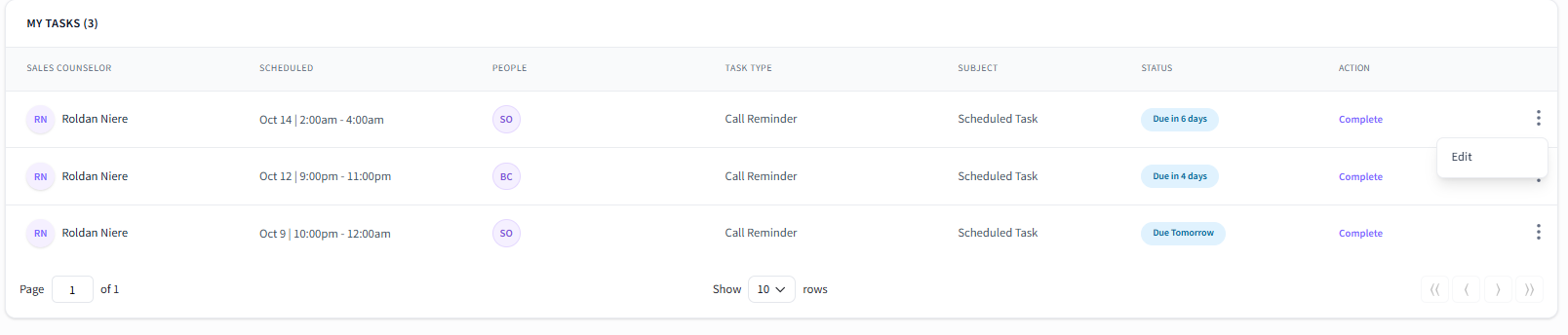
| Sales Counselor | Displays the initials and full name of the assigned sales team member responsible for hosting or conducting the scheduled appointment |
| Scheduled | Indicates the precise date and time window scheduled for the appointment |
| People | Displays the initials of the referrer and contacts associated with the booking. Hovering over the initials reveals a tooltip with the contact's full name, and clicking navigates directly to their information |
| Task Type | Identifies the specific follow-up action required (e.g., Call Reminder, Send Email, SMS Follow-up, Note) |
| Subject | Outlines the title or primary objective of the booked event |
| Status | Displays the current operational state of the appointment. Shows dynamic countdown tag |
| Action | Provides direct execution buttons to complete or update the appointment in one click |
Outreach
The Outreach Overview widget on the Referrers Dashboard provides real-time visibility into multi-channel communication volume exchanged with professional referral partners. It enables sales teams and executive leadership to monitor outreach productivity, track engagement channels (Calls, Emails, and SMS), and evaluate the balance between proactive outbound effort and inbound partner communication.
Things to Know Before You Begin
- Multi-Channel Coverage: Consolidates all logged interactions—including phone calls, direct emails, and SMS text messages—exchanged with professional referrer contacts.
- Real-Time Data Refresh: Activity counts update dynamically as counselors log touchpoints, send emails, place calls, or exchange text messages.
- Global Filter Integration: The data displayed in this widget dynamically adjusts based on the top header Sales Counselor, Community, and Date Range filters
The widget is divided into two complementary analytical views:

| Inbound Calls | Incoming phone calls received from referral partners. |
| Inbound Emails | Incoming email communications received from professional contacts |
| Inbound SMS | Incoming text messages received from referrers. |
| Outbound Calls | Outgoing phone calls placed by sales counselors to referrers |
| Outbound Emails | Direct or template emails sent to referral contacts. |
| Outbound SMS | Outgoing text messages sent to professional partners |
Was this article helpful?
That’s Great!
Thank you for your feedback
Sorry! We couldn't be helpful
Thank you for your feedback
Feedback sent
We appreciate your effort and will try to fix the article